


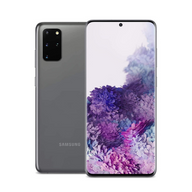
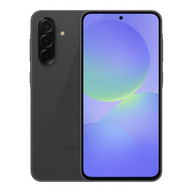


Activating Your Plug Certified iPhone or Android on Boost Mobile: A Step-by-Step Guide
Updated on | 9 mins readActivating Your Plug Certified iPhone or Android on Boost Mobile: A Step-by-Step Guide
There is a unique kind of excitement that comes with peeling the protective film off a newly purchased smartphone. The screen is pristine, the battery is fully charged, and the possibilities are endless. Many savvy shoppers start their journey typing queries like is plug tech legit into search engines, only to experience that undeniable "aha" moment the second they unbox their flawlessly refurbished device.
But once the unboxing thrill settles, a common wave of anxiety often takes its place: activation.
If you are transitioning to Boost Mobile, the process of bringing your own device (BYOD) can sometimes feel like trying to decode a foreign language. Between navigating SIM cards, eSIMs, number porting, and network settings, it is easy to get overwhelmed.
Don't worry. Activating your Plug Certified device on Boost Mobile is actually a straightforward process once you understand the steps. Think of this guide as your knowledgeable friend walking you through the setup over a cup of coffee. By the end, you will have your iPhone or Android connected, configured, and ready to go.
The Foundation: Why Device Readiness Matters
Before any smartphone can communicate with a cellular tower, it needs to be free of carrier restrictions. If you have ever had to research how to unlock iphone from carrier restrictions, you know it can be a tedious, frustrating maze of customer service calls and waiting periods.
The beauty of choosing a Plug Certified device is that this hurdle is already cleared for you. Your device arrives fully unlocked and network-ready. It has passed rigorous functional testing and is backed by Plug's 12-Month Warranty, meaning you can focus purely on getting connected rather than worrying about hardware compatibility.
SIM vs. eSIM: Navigating the New Era of Activation
To activate your phone, Boost Mobile needs to identify it. Historically, this was done using a physical SIM (Subscriber Identity Module) card—a tiny plastic chip you would carefully slide into the side of your phone.
Today, the telecom industry is rapidly shifting toward the eSIM (embedded SIM). An eSIM does the exact same job as a physical SIM, but it is built directly into your phone’s motherboard. Instead of waiting for a physical card to arrive in the mail, you simply download your carrier's digital profile over Wi-Fi.
The Plug Advantage: When you receive your Plug Certified device, you will notice an insert containing an ICCID (Integrated Circuit Card Identifier). This 20-digit number is your golden ticket. It is specifically designed to bridge your device to Boost Mobile’s eSIM activation flow, allowing you to skip the physical SIM card entirely and get connected in minutes.
Preparing for Your Boost Mobile Activation
Before diving into the activation screens, gather your materials to ensure a seamless experience. If you are setting up your new Plug phone for the first time, you will need:
- Your Plug Certified Device: Ensure it is powered on and has at least a 50% battery charge.
- A Reliable Wi-Fi Connection: Because you are downloading a digital eSIM profile, a stable internet connection is mandatory.
- Your Plug Activation Insert: Keep the paper insert with your ICCID handy.
- Current Carrier Information (If Porting): If you want to keep your current phone number, you must have your current account number, account PIN, and your old phone nearby to approve the transfer.
Step-by-Step: How to Activate Your Device
Ready to get connected? Follow these steps to activate your iPhone or Android on Boost Mobile.
Step 1: Start the Digital Setup
Grab your computer or a secondary device and head over to the official activation portal at boostmobile.com/activate to begin. Choose the option to "Bring Your Own Phone."
Step 2: Verify Your Device
You will be asked to enter your phone's IMEI (International Mobile Equipment Identity) number. This confirms your device is compatible with the Boost Mobile network.
- On an iPhone: Go to Settings > General > About and scroll down to find the IMEI.
- On an Android: Go to Settings > About Phone to locate your IMEI.
Step 3: Enter Your ICCID for eSIM
When prompted to choose between a physical SIM or an eSIM, always select eSIM. This is where you will input the 20-digit ICCID found on your Plug activation insert. This specific code tells Boost Mobile exactly how to route your digital profile to your newly purchased device.
Step 4: Number Porting vs. New Number
You will be prompted to either get a new number or transfer (port) your existing one.
- If getting a new number: Simply follow the prompts to generate a number based on your zip code.
- If porting your number: Enter your previous carrier's account number and transfer PIN. Crucial tip: Do not cancel your old cell phone service before doing this! Your old service must remain active for the number transfer to succeed.
Step 5: Finalize Network Settings
Once you complete the online setup, your phone needs to download the network profile.
- For iPhone Users: Within a few minutes, you should see a prompt on your screen that says "Finish Cellular Setup" or "Boost Mobile Cellular Plan Ready to be Installed." Tap it, follow the on-screen prompts, and your iPhone will automatically configure itself.
- For Android Users: Android devices often require a helpful assist. Connect to Wi-Fi, go to the Google Play Store, and download the Boost Config app. Open the app, and it will automatically apply the correct network settings to your phone.
Troubleshooting Common Activation Hiccups
Even with a perfect setup, technology can sometimes be stubborn. If things aren't working immediately, you aren't alone. Here are the most common roadblocks and how to bypass them:
"I never got the 'Finish Cellular Setup' prompt on my iPhone."
First, ensure you are connected to Wi-Fi. If you still don't see it, go to Settings > Cellular > Add eSIM. Often, the Boost Mobile profile is sitting there waiting for you to tap it. If it’s still missing, restart your iPhone.
"My phone says SOS Only or No Signal."
This usually means the eSIM profile downloaded, but the activation on Boost Mobile's end is still processing. Number ports can take anywhere from 10 minutes to 24 hours (though they usually complete quickly). Leave your phone connected to Wi-Fi and restart it after 15 minutes.
"The Boost Config app on my Android isn't working."
Ensure your Android operating system is fully updated. Go to Settings > System > System Update. Once updated, restart the phone, uninstall the Boost Config app, reinstall it, and try again.
Frequently Asked Questions (FAQ)
What happens if I lose the Plug activation insert with my ICCID?
While the provided insert makes the process seamless, you can still activate your device. You can use the standard Boost Mobile eSIM activation flow by entering your device's EID (Embedded Identity Document) number, which is found right next to the IMEI in your phone's settings.
Why is my number port taking so long?
Number porting delays are almost always caused by a mismatch in the information provided. If your old account number, ZIP code, or Transfer PIN is even one digit off, the old carrier will block the transfer. Double-check your details and contact Boost Mobile support to update the port request if necessary.
Does Plug's 12-Month Warranty cover network issues?
Your 12-Month Plug Warranty is comprehensive and covers hardware defects, battery performance, and internal device failures. While it doesn't cover cellular network outages (which are controlled by Boost Mobile), it absolutely guarantees that the phone's internal antennas and eSIM hardware function exactly as they should.
Next Steps: Maximizing Your Mobile Experience
Activating your device is just the first step in your technology journey. By pairing an affordable, rigorously tested Plug Certified device with a flexible Boost Mobile plan, you have just unlocked exceptional value without sacrificing quality.
Now that your iPhone or Android is successfully connected to the network, take some time to explore. Download your favorite apps, test out the camera, customize your home screen, and enjoy the peace of mind that comes with making a brilliant tech investment.


