


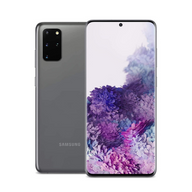
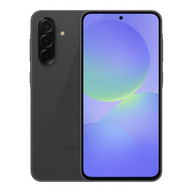





Switching from Samsung to iPhone: Your Essential Guide
Updated on | 11 mins readSwitching from Samsung to iPhone: Your Essential Guide
Switching smartphone ecosystems often feels like moving to a new city. You know the destination is exciting, but the logistics of packing up your digital life can feel overwhelming. If you are evaluating a move from a Samsung Galaxy to an iPhone, you are part of a growing trend. According to recent 2026 smartphone loyalty surveys, while Samsung retains an impressive 90.1% loyalty rate, 26.8% of Android users who do decide to switch brands are heading straight for the iPhone.
Whether you are drawn to Apple's seamless ecosystem, its renowned resale value, or its robust privacy features, making the leap does not have to mean losing your photos, contacts, or favorite apps. The transfer process has evolved significantly.
This guide serves as your comprehensive roadmap. We will walk you through exactly how to migrate your data flawlessly, navigate your new Apple ecosystem, and match your current Samsung device with the perfect Plug Certified iPhone.
The Apple Ecosystem: What to Expect When You Switch
Before we move your data, it helps to understand what changes when you cross the platform divide. Samsung devices thrive on deep customization and open-source flexibility. The iPhone, by contrast, is built on ecosystem coherence.
Apple designs both the hardware and the software, meaning everything from your AirPods to your Mac communicates effortlessly. You will trade the hyper-customization of Android for the legendary reliability and unified experience of iOS. Features like AirDrop for instant file sharing, FaceTime for integrated video calls, and iMessage for rich texting become standard parts of your daily routine.
How to Transfer Your Data (The Official "Move to iOS" Way)
Apple’s official "Move to iOS" app remains the most secure, comprehensive way to migrate your data. As of 2026, Apple has heavily upgraded this tool to include direct USB-C cable transfers and seamless eSIM migration, eliminating the two biggest headaches switchers historically faced.
Preparing for the Transfer
- Do not set up your iPhone yet. The Move to iOS app only works during the initial iPhone setup process. If you have already set up your new phone, you will need to factory reset it to use this method.
- Power up. Plug both your Samsung and your new iPhone into power sources.
- Check your storage. Ensure your new iPhone has enough storage capacity to hold the data you are bringing over.
Step-by-Step Wireless Transfer
- Turn on your new iPhone and follow the on-screen setup instructions until you reach the Apps & Data screen.
- Tap Move Data from Android.
- On your Samsung device, download and open the Move to iOS app from the Google Play Store.
- Tap Continue on both devices. Your iPhone will generate a secure 6-digit or 10-digit code.
- Enter the code on your Samsung. This creates a temporary, direct Wi-Fi network between the two phones.
- Select the content you want to transfer—contacts, message history, camera photos, files, display settings, and even your WhatsApp data.
- Leave both devices alone until the loading bar on your iPhone completes. Depending on your data volume, this can take anywhere from ten minutes to an hour.
The 2026 Update: USB-C and eSIM Migration
If you are moving to a newer model like the iPhone 15 or 16 series, you can now use a USB-C to USB-C cable to connect both phones directly. This drastically speeds up the transfer process and eliminates the risk of Wi-Fi drops. Additionally, during the setup, Move to iOS now prompts you to port your phone number via eSIM, meaning you do not have to mess with physical SIM card trays to get your cellular network up and running.
Moving Data After iPhone Setup (Without Factory Resetting)
One of the most common frustrations switchers face is realizing they missed some data after their iPhone is already set up. If you do not want to factory reset your device and start over, you still have excellent options.
Cloud-Based Transfers
Your Google account is your best friend here. By downloading Google Drive, Google Photos, and Gmail on your new iPhone, you can instantly access your media and documents. For contacts and calendars, simply go to your iPhone's Settings > Mail > Accounts > Add Account, select Google, and toggle on Contacts and Calendars to sync them directly to your Apple apps.
Third-Party Transfer Apps
If you need to move localized files without using the cloud, third-party software offers a reliable bridge. Tools available on Mac or PC allow you to plug in both devices and drag-and-drop data. When evaluating third-party transfer apps, always check their privacy policies, as some require extensive permissions. Look for tools that offer local transfers (via cable or local network) rather than routing your data through external servers.
WhatsApp and App Data Migration
Moving WhatsApp data used to be a nightmare for switchers. Today, it is fully integrated into the Move to iOS app.
However, you must select WhatsApp during the initial Move to iOS transfer phase. Once the transfer is complete and you download WhatsApp from the Apple App Store, simply log in with the exact same phone number. The app will detect the migrated data and unpack your chat history flawlessly.
For other apps, Move to iOS will attempt to download the free iOS equivalents of your Android apps automatically. Keep in mind that any paid apps will need to be repurchased on the Apple App Store, and in-app game progress will only carry over if the game uses a universal login system (like a Facebook or developer account).
Finding Your Perfect Match: Which iPhone Should You Buy?
If you haven't yet purchased your new device, matching your current Samsung experience to the right iPhone is crucial. At Plug, we respect platform neutrality—we offer incredible deals on both Androids and iPhones. But if you have decided to make the switch, here is how to translate your Samsung model into the ideal Plug Certified iPhone.
Moving from the Galaxy S Ultra Series
If you are accustomed to the massive screens, incredible zoom lenses, and premium build quality of the Galaxy S22, S23, or S24 Ultra, you belong in Apple's Pro Max tier. An iPhone 13 Pro Max or iPhone 14 Pro Max will give you the expansive display, superior battery life, and pro-level camera systems you are used to, all while remaining highly affordable when purchased certified by Plug.
Moving from the Standard Galaxy S Series
If you love the compact power of the standard Galaxy S series, look at the standard Pro models or the base iPhones. An iPhone 13 Pro or iPhone 14 offers a similar pocket-friendly footprint, brilliant OLED displays, and flagship performance without the bulk of the Max models.
Switching from the Galaxy A Series
If you have been using Samsung's budget-friendly A-series, you are likely looking for maximum value. The iPhone SE (3rd Gen) offers classic Apple design with modern processing power. Alternatively, a Plug Certified iPhone 12 or iPhone 13 delivers a premium edge-to-edge display experience at a price point that aggressively competes with mid-range Androids.
No matter which model you choose, buying a Plug Certified device means you get a rigorously tested phone backed by Plug's 12-Month Warranty and a 30-day hassle-free return policy, completely removing the risk from your upgrade.
Settling In: Onboarding to iOS
Once your data is moved, there is a brief learning curve. Here are the three most important adjustments you will make:
- The Apple ID is Everything: Your Apple ID replaces your primary Google Account as the key to your device. It manages your App Store purchases, your iCloud storage, and your Find My device tracking.
- Control Center vs. Quick Settings: Instead of pulling down from the top-middle of the screen, swipe down from the top-right corner of your iPhone to access the Control Center. This is where your Wi-Fi, Bluetooth, flashlight, and screen brightness controls live.
- App Library: Missing your Android app drawer? Swipe all the way to the right past your home screens to find the App Library, which automatically categorizes all your apps so you do not have to clutter your home screen.
Troubleshooting Common Transfer Hurdles
Even with official tools, tech can occasionally hiccup. Here is how to solve the most common transfer roadblocks:
- The transfer keeps dropping: This usually happens if your Samsung phone tries to auto-connect to a different saved Wi-Fi network with internet access (since the temporary network created by the iPhone has no internet). On your Samsung, "Forget" your home Wi-Fi network temporarily until the transfer completes.
- Not enough storage error: Move to iOS calculates the size of your Android data. If it exceeds your new iPhone's capacity, the transfer will fail. Clear out old videos and large files on your Samsung before attempting the transfer again.
- Stuck on "Calculating Time Remaining": Give it at least 15 minutes. If it stays completely frozen, restart both devices, ensure both are plugged into power, and try again using the USB-C cable method if your devices support it.
Frequently Asked Questions (FAQs)
Do I have to buy all my apps again?If the app was free on the Google Play Store, it will likely download for free on the App Store. If it was a paid app, yes, you will need to repurchase it through Apple. Subscription services (like Netflix or Spotify) just require you to log back in.
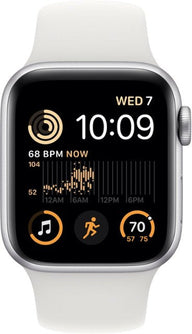
Will my Samsung accessories work with an iPhone?Samsung Galaxy Buds and Galaxy Watches have limited compatibility. While Galaxy Buds will connect via Bluetooth for audio, you lose access to the Wearable app features on iOS. Galaxy Watches running Wear OS (Galaxy Watch 4 and newer) are not compatible with iPhones at all; you will want to look into an Apple Watch.
Is my data safe during the transfer?Absolutely. The temporary Wi-Fi network created by the iPhone is encrypted, and no data is uploaded to public servers during the direct device-to-device transfer.
Ready to Make the Switch?
Migrating from Samsung to iPhone is a significant step, but with the right preparation and tools, it is a frictionless process that opens up a brand-new world of technological integration.
When you are ready to make the switch, finding a device that balances premium quality with affordability is your next step. At Plug, our rigorous testing ensures every device meets elite functionality and appearance standards. Explore our collection of Plug Certified iPhones today, and buy with total confidence knowing your investment is protected by Plug's 12-Month Warranty.


