










Demystifying the Apple Pencil 1st Gen: A Complete Guide to Charging, Pairing, and Adapters
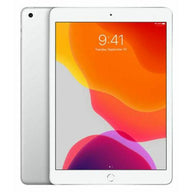
Updated on | 9 mins readPicture this: You’ve just unwrapped a beautiful, sleek iPad—perhaps the colorful 10th generation model—along with a brand new Apple Pencil (1st generation). You eagerly pop the cap off the top of the Pencil to connect it, only to be met with a moment of pure confusion. The Pencil has a Lightning connector, but your new iPad has a USB-C port.
How are these two supposed to talk to each other?
If you’ve found yourself staring at your devices wondering if you missed a step, you are not alone. The evolution of Apple’s charging ports has created a bit of a physical puzzle for new users. But don't worry—once you understand the "why" and the "how," pairing and charging your Apple Pencil becomes second nature.
Let’s bridge the gap between your devices and unlock the full potential of your digital canvas.
The Port Puzzle: Understanding the Lightning vs. USB-C Shift
To understand how to connect your Apple Pencil, it helps to understand a brief history of iPad ports.
When the 1st generation Apple Pencil was released in 2015, every iPad on the market featured a Lightning port. The Pencil was ingeniously (if somewhat awkwardly) designed to plug directly into the bottom of the iPad. It acted as both a physical pairing mechanism and a charging method.
Fast forward to today. The tech world, including Apple, has largely transitioned to USB-C ports for faster data transfer and universal charging. The iPad (10th generation) features this modern USB-C port. However, because the 1st generation Apple Pencil remains the compatible stylus for this model, a bridge is needed to connect the older Lightning technology with the newer USB-C technology.
That bridge is an adapter.
How to Pair and Charge Your Apple Pencil (1st Gen)
Depending on which iPad model you own, the process for bringing your Apple Pencil to life looks a little different. Let's break it down by your iPad's port type.
For iPads with a Lightning Port (iPad 9th Gen and older)
If your iPad has a standard Lightning port at the bottom, your process is incredibly straightforward:
- Remove the cap from the back end of your Apple Pencil.
- Plug the Pencil directly into the Lightning connector at the bottom of your iPad.
- Accept the pairing prompt. A Bluetooth pairing request will pop up on your iPad screen. Tap "Pair."
While it might look a bit like a futuristic lollipop sticking out of your tablet, this direct connection handles both the initial Bluetooth pairing and the ongoing charging. You only need to pair it once; it will stay paired until you restart your iPad, turn on Airplane Mode, or pair the Pencil with a different iPad.
For iPads with a USB-C Port (iPad 10th Generation)
If you are using the iPad (10th generation), you cannot plug the Apple Pencil directly into the tablet. You will need the USB-C to Apple Pencil Adapter.
Here is the foolproof way to pair and charge:
- Remove the cap from your Apple Pencil.
- Plug the Pencil into the Lightning end of the adapter.
- Connect a USB-C cable to the other end of the adapter.
- Plug the other end of the USB-C cable into your iPad.
- Accept the pairing prompt. Once physically connected, tap "Pair" on your iPad screen.
A quick aha moment: Why can't you just use any cheap adapter? Because this connection isn't just delivering power; it’s transmitting the crucial data handshake required to pair the devices via Bluetooth. If you ever need to replace your adapter, ensure it explicitly supports both charging and pairing for the 1st generation Pencil.
Beyond the iPad: Charging Without Your Tablet
You don’t always have to drain your iPad’s battery to charge your Apple Pencil. If you want to charge your Pencil via a wall outlet, you can use the tiny female-to-female Lightning adapter that originally came in the box with your Apple Pencil.
Simply plug your Apple Pencil into one end of this adapter, and plug a standard Lightning cable (like the one you might use for an older iPhone) into the other end. Connect the cable to a power brick, and your Pencil will charge independently of your tablet.
Pro Tip for Creators in a Hurry: The Apple Pencil 1st generation features incredible fast-charging capabilities. If you are in the middle of a drawing and your Pencil dies, plugging it in for just 15 seconds will give you approximately 30 minutes of usage time!
Mastering Your Battery: How to Check the Charge Level
One of the most common pain points for new users is figuring out how much juice is left. The Apple Pencil itself has no LED lights or physical battery indicators. Instead, Apple integrated this information directly into iPadOS.
To keep an eye on your battery life, you'll want to add the Battery Widget to your iPad's Home Screen:
- Tap and hold any empty space on your iPad Home Screen until the apps start jiggling.
- Tap the "+" (Plus) icon in the top left corner.
- Scroll down and select Batteries.
- Choose the widget size you prefer and tap Add Widget.
Now, whenever your Apple Pencil is connected via Bluetooth, you will see its battery percentage displayed clearly alongside your iPad's battery level.
Troubleshooting Common Pairing and Charging Issues
Even with the right adapters, technology can occasionally have a mind of its own. If your Apple Pencil isn't charging or pairing, run through this quick diagnostic checklist:
- Check the connections: Lint and dust love to hide in ports. Gently inspect your iPad's charging port and the inside of your adapters to ensure they are clean.
- Verify Bluetooth is active: Your Apple Pencil uses Bluetooth to communicate. Go to Settings > Bluetooth and ensure it is toggled on.
- Tighten the nib: It sounds strange, but if the tip (nib) of your Apple Pencil becomes slightly unscrewed, it can disrupt the connection and cause the Pencil to stop drawing or registering properly. Simply twist it gently clockwise to ensure it's snug.
- The "Forget and Re-pair" reset: If the Pencil shows up in your Bluetooth settings but won't connect, tap the small "i" icon next to it, select "Forget This Device," and run through the physical pairing process again.
Frequently Asked Questions (FAQ)
Can I charge my 1st Gen Apple Pencil with my iPhone?
Technically, if you have an iPhone with a Lightning port, you can plug the 1st Gen Apple Pencil directly into your phone to charge it! However, you cannot pair the Pencil to the iPhone to draw with it, as iPhones do not have the necessary display technology to work with the Apple Pencil.
Do I need to unpair my Apple Pencil to charge it via a wall outlet?
No. Your Apple Pencil remembers its Bluetooth pairing with your iPad even when you plug it into a wall charger. As long as you don't turn off your iPad's Bluetooth or restart the tablet, you can pick up the Pencil after charging and start drawing immediately.
What happens if I lose my adapter?
If you lose the USB-C to Apple Pencil adapter, you will need to replace it to pair your Pencil with a 10th generation iPad. When shopping for replacements, remember that not all generic adapters transmit data—some only transmit power. Always look for adapters specifically designed for Apple Pencil pairing.
How long does the Apple Pencil battery last?
A fully charged 1st generation Apple Pencil typically lasts for about 12 hours of continuous use. Thanks to its standby efficiency, it can hold a charge for quite a while when not in active use.
Next Steps in Your Tech Journey
Understanding the physical connectivity of your devices is the first step toward a seamless digital experience. Whether you are using a legacy Lightning iPad or navigating the newer USB-C ecosystem with adapters, the Apple Pencil remains one of the most powerful tools for digital creativity, note-taking, and productivity.
As you continue to explore the capabilities of your tech ecosystem, remember that high-quality technology doesn't have to be complicated—or prohibitively expensive. If you are looking to upgrade your setup or explore additional devices that play perfectly with your Apple Pencil, exploring Plug Certified devices is a brilliant way to expand your tech collection. Every device is rigorously tested to ensure flawless functionality and is backed by Plug's 12-Month Warranty, giving you the confidence to create, work, and play without hesitation.
Now that your Pencil is paired, charged, and ready to go—what will you create first?


