


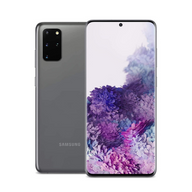
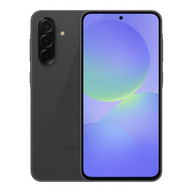




Switching from iPhone to Samsung: Your Comprehensive Migration Guide
Updated on | 9 mins readSwitching from iPhone to Samsung: Your Comprehensive Migration Guide
Making the leap from Apple’s iOS to Samsung’s Android ecosystem can feel like moving to a new city. You know it will be exciting and full of new possibilities, but you also have to figure out how to pack up all your stuff and ensure nothing gets lost in transit. For years, the thought of leaving behind blue text bubbles and familiar interfaces kept many users locked into one platform. But with recent advancements in mobile technology, switching has never been more straightforward or more rewarding.
At Plug, we offer both Plug Certified Apple and Samsung devices, which means we don’t have a horse in this race. Our only goal is to help you find the right technology for your lifestyle. Whether you are craving the innovative folding screen of a Galaxy Z Flip or the unmatched battery life and camera capabilities of a Galaxy S Ultra, this guide provides the neutral, step-by-step advice you need to make a seamless transition.
Preparing for the Switch: Your Pre-Migration Checklist
Before you power down your Apple device for the last time, a few minutes of preparation will save you hours of frustration later. The biggest roadblock most users face when switching isn't moving photos or contacts—it's communication disruption.
The iMessage Deactivation Protocol
To ensure you don’t miss texts from your friends and family, turning off iMessage and FaceTime is an absolutely critical step. Because Apple intercepts texts sent between iPhones, if you leave iMessage on, your new Samsung won't receive texts from other Apple users—they will get trapped in the cloud as unread blue bubbles.
- Go to Settings > Messages on your current device and toggle iMessage off.
- Go to Settings > FaceTime and toggle FaceTime off.
- If you no longer have your old phone, you can deregister your number directly through Apple’s online portal.
Back Up Your Data
Whether you are migrating from an older iphone 14 or evaluating a switch away from a newer iphone 15 or iphone 16, always initiate a final iCloud or local computer backup. Having a secure copy of your data gives you complete peace of mind during the transfer process.
Step-by-Step Data Migration Using Samsung Smart Switch
Samsung’s Smart Switch app is the secret weapon for a smooth migration. It allows you to transfer your contacts, photos, videos, notes, and calendar events seamlessly.
When you sit down to set up my device from old phone, you have two options: wireless or cabled. Research data shows that a physical cable connection (using a Lightning to USB-C cable) is significantly faster and more reliable for large data transfers.
How to Execute the Transfer
- Power on your new Samsung Galaxy and begin the initial setup.
- When prompted, select that you are bringing data from an iPhone or iPad.
- Connect the two devices using your cable. If a cable isn't available, you can opt to transfer wirelessly by logging into iCloud on your Samsung device.
- Select the data you want to bring over.
- Let the transfer run. Do not unplug the phones or close the app until the Samsung device confirms the transfer is complete.
Important Note: While Smart Switch moves your personal data, it does not directly move your apps. The app will, however, scan your current library and help you download the exact equivalents from the Google Play Store automatically.
Managing the Communication Transition
Leaving iMessage often causes the most anxiety for switchers. Fortunately, the Android ecosystem has evolved significantly to close this gap.
Embracing RCS (Rich Communication Services)
Google Messages is the default texting app on modern Samsung devices, and it utilizes RCS. This means you will still enjoy read receipts, typing indicators, high-quality photo sharing, and Wi-Fi texting when messaging other Android users.
Group Chat Continuity
When moving to Samsung, existing group chats mixed with Apple users can sometimes experience SMS delays or split threads. The best practice is to ask the group to start a brand-new text thread once your Samsung is activated. This forces the carrier networks to recognize your number as an SMS/MMS recipient, ensuring you don't miss a beat.
Understanding Ecosystem Differences
It is natural to worry about losing the tight integration of your current ecosystem, especially if you rely on accessories like an Apple Watch or AirPods.
Device Feature Parity and Longevity
One of the biggest historical arguments against switching was device lifespan. That is no longer the case. Modern Android flagships now support up to seven years of software and security updates, offering longevity that fully matches or exceeds iOS standards.
Accessory Integration
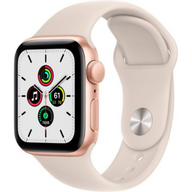
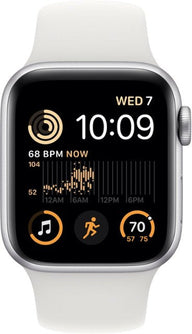
While your AirPods will connect to your new Samsung via Bluetooth and work perfectly for audio, you will lose Apple-specific features like automatic device switching. Note that the Apple Watch is not compatible with Android, meaning you will likely want to explore a Galaxy Watch to maintain a connected wearable experience.
The Fold and Flip Advantage
If you are moving to Android to experience foldable technology, there is a slight learning curve. Whether you are still deciding which galaxy z flip5 to buy or have already picked up a Galaxy Z Fold, Samsung's One UI software includes specific adjustments. Features like "Flex Mode" allow apps to split dynamically when the phone is half-open, requiring a brief adjustment period as you learn new multitasking gestures.
Finding Your Perfect Samsung Match
Choosing the right device makes the transition much more comfortable. Here is a quick equivalency guide to help you find your match in the Galaxy lineup:
- If you love the standard Pro models: The samsung galaxy s23 models offer incredible flagship performance in a familiar, pocketable form factor.
- If you demand the absolute best (Pro Max users): Stepping up to the samsung s24 Ultra provides you with a massive screen, the integrated S-Pen, and top-tier camera zoom capabilities.
- If you want cutting-edge innovation: The Galaxy Z Flip and Z Fold series offer form factors that Apple simply does not provide yet.
You can browse our massive inventory of Plug Certified refurbished samsung phones to find exactly what you need at a fraction of the retail cost.
Why Choose Plug for Your Next Device?
When you are making a major platform switch, you need hardware you can trust. Plug bridges the gap between premium performance and affordable pricing. Every device we sell is rigorously tested and certified by Plug to ensure it meets our strict cosmetic and functional standards.
Because we offer both platforms, our advice is always neutral. We just want you to love your tech. To give you absolute confidence in your decision, every purchase includes Plug's 12-Month Warranty and a 30-day hassle-free return policy. If you try Samsung and realize it just isn't for you, we have you covered.
Frequently Asked Questions (FAQ)
Will I lose all my purchased apps?
While Smart Switch helps you locate the Android versions of your apps, any paid apps or subscriptions tied directly to your Apple ID (and not a third-party account like Netflix or Spotify) will need to be repurchased on the Google Play Store.
How long does the Smart Switch transfer take?
Transfer times vary based on the amount of data. A hardwired transfer of 50GB typically takes 15 to 30 minutes, whereas a wireless transfer can take over an hour.
What if my text messages don't transfer correctly?
If you notice missing texts, ensure that iMessage was fully deactivated on your old device. You can also use Smart Switch a second time just to migrate messages without duplicating your other data.
Is Samsung's One UI hard to learn?
Not at all. While the settings menu looks different, the core navigation (swiping up to go home, swiping left/right to go back) is nearly identical to modern iOS gestures. You can also heavily customize your home screen to look and act exactly the way you prefer.
Your Next Steps
Switching platforms doesn't have to be intimidating. By turning off iMessage, utilizing Smart Switch with a cable, and preparing for the slight shift in app ecosystems, you'll be up and running on your new Galaxy device in under an hour.
Ready to explore what Android has to offer? Browse Plug’s extensive collection of Plug Certified Samsung Galaxy devices today. Find your perfect match, enjoy the peace of mind of our 12-Month Plug Warranty, and step confidently into your new tech ecosystem.


