




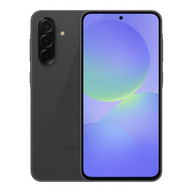


Advanced Battery Calibration & Health Monitoring for Your Refurbished Galaxy S25
Updated on | 10 mins readImagine this: you're sitting at a coffee shop, enjoying your newly arrived Samsung Galaxy S25. The screen is flawless, the camera is snappy, and your battery indicator proudly displays 15%. You have plenty of juice to finish an email. Suddenly, the screen goes black. The phone is completely dead.
Frustrating? Absolutely. But before you panic and assume your new device has a faulty battery, take a breath. In the vast majority of cases, the hardware is perfectly fine. What you just experienced is a classic miscommunication between your phone's battery and its software—a digital misunderstanding that can be fixed with a process called battery calibration.
Whether you're switching from an iPhone or upgrading your Android ecosystem, understanding how to monitor and calibrate the battery of a refurbished Galaxy S25 is a superpower. Let's peel back the glass and explore exactly how your battery thinks, why it occasionally gets confused, and the advanced steps you can take to bring it back into perfect harmony.
The Science of the "Phantom Drain"
To understand why your battery percentage sometimes jumps around, it helps to know how smartphones actually measure power.
Unlike a jug of water where you can clearly see how much liquid is left, a smartphone battery doesn't have a visible "fill line." Instead, your Galaxy S25 relies on a brilliant piece of technology called the Battery Management System (BMS). The BMS acts as a digital fuel gauge, constantly estimating how much energy is left by measuring voltage and tracking how much power the phone consumes.
Over time, two things happen:
- Chemical Aging: Like all lithium-ion batteries, the battery inside your phone naturally ages, losing a tiny fraction of its maximum capacity over hundreds of charge cycles.
- Software Desynchronization: As you plug and unplug your phone at random percentages (say, charging from 40% to 80%), the BMS gradually forgets where the true "0%" and "100%" marks are.
When a device is rigorously tested to become Plug Certified, the software is entirely wiped and restored. While the phone is physically in top-tier condition, this fresh software slate sometimes needs to "relearn" the exact chemical boundaries of its battery. Until it does, the fuel gauge might guess wrong, leading to unexpected shutdowns or a percentage that seems stuck at 100% for hours before dropping rapidly.
Is It Chemical Wear or a Software Glitch?
One of the most common questions from environmentally conscious buyers and tech enthusiasts alike is: "How do I know if my battery is actually degraded, or if it just needs recalibration?"
It all comes down to symptoms.
Signs of a Calibration Error (Software Glitch):
- The battery drops from 15% to 0% in a matter of seconds.
- The phone stays at 100% for a surprisingly long time, then drops fast.
- Your battery life varies wildly from day to day, despite similar usage.
Signs of Chemical Wear (Hardware Issue):
- The battery consistently drains fast from 100% to 0% at a steady, predictable rate.
- The device physically bulges (a sign of a swollen battery, which requires immediate safe disposal and replacement).
- The phone gets unusually hot during basic tasks.
The good news? Because your device is Plug Certified, it has already passed rigorous battery health inspections. However, if genuine hardware failure does occur, you are entirely covered by Plug's 12-Month Warranty. But before reaching out for a replacement, it's always best to try an advanced calibration.
The Ultimate Galaxy S25 Calibration Protocol
If you've searched community forums like XDA Developers, you've likely seen a confusing mix of advice. We've distilled the most authoritative, expert-vetted techniques into a safe, reliable protocol specifically tailored for the Galaxy S25.
Step 1: The Hardware Health Check
Before we reset the software, let's check the hardware. Samsung provides a fantastic built-in diagnostic tool.
- Open the Samsung Members app (download it from the Galaxy Store if you don't see it).
- Tap on Support at the bottom right.
- Select Phone Diagnostics and tap on Battery status.
If the status says "Normal" or "Good," your physical battery is fine! The phantom drain is just a calibration error. If it says "Action Required," it might be time to utilize that 30-day hassle-free return or warranty.
Step 2: The Discharge and Charge Cycle
This step teaches your software exactly where the physical limits of your battery are.
- Drain the battery completely: Use your phone normally until it powers off entirely. Try turning it back on. If it boots up and immediately dies again, the battery is truly at 0%.
- Charge to 100% uninterrupted: Plug your phone into the wall (avoid wireless chargers for this step as they generate excess heat). Do not turn the phone on. Let it charge completely to 100%. Leave it plugged in for an extra hour after it reaches 100% to ensure the cells are fully saturated.
A quick warning: Lithium-ion batteries do not like being deeply discharged. You should only perform this 0-100% cycle once every few months for calibration purposes. Doing it daily will prematurely age your battery.
Step 3: The Advanced USSD Reset (The Secret Menu)
For advanced tech enthusiasts, draining the phone isn't always enough to clear the old battery statistics. You can force the Android system to dump its old battery data using a USSD code.
- Open your Galaxy S25’s native phone dialer.
- Type
*#9900#(Note: Some cellular carriers block USSD codes. If nothing happens, skip to Step 4). - A system menu called "SysDump" will appear.
- Scroll down and tap Batterystats Reset.
- Scroll to the bottom and tap Exit, then reboot your phone.
This completely wipes the old "fuel gauge" memory, forcing your S25 to start fresh based on the new 100% charge you just gave it.
Step 4: The Recovery Mode Cache Wipe
Sometimes, leftover data from old firmware updates can interfere with battery reporting.
- Turn off your Galaxy S25.
- Connect it via USB-C to a computer (Samsung requires a data connection to enter recovery mode on modern devices).
- Press and hold the Volume Up and Power buttons simultaneously.
- When the Samsung logo appears, release the buttons. You are now in Recovery Mode.
- Use the volume keys to navigate to Wipe cache partition and press the Power button to select it. (Ensure you do NOT select "Wipe data/factory reset").
- Confirm the action, then select Reboot system now.
Continuous Health Monitoring for Your Device
Once your battery is calibrated, you want to keep it running perfectly. While the New York Times has spotlighted Plug as the top way to buy a pre-owned device, how you treat your tech once it arrives matters just as much.
Best Practices for Refurbished Phone Batteries:
- Aim for the 20-80% Rule: For daily use, try to keep your battery between 20% and 80%. This heavily reduces chemical stress on the lithium-ion cells.
- Use Protect Battery Mode: Go to Settings > Battery > Protect Battery and toggle it on. This artificially limits your Galaxy S25 from charging past 85%, which drastically extends the lifespan of the battery over years of use.
- Monitor with AccuBattery: If you love data, third-party apps like AccuBattery can monitor your charge cycles over time and give you highly accurate estimates of your battery's chemical capacity.
Frequently Asked Questions (FAQ)
What exactly is battery calibration?
Battery calibration is the process of realigning your phone's software "fuel gauge" with the physical limits of its chemical battery. It does not magically create more physical power; it just ensures your phone displays the correct percentage and doesn't shut down prematurely.
Does calibration improve battery life?
No, it does not increase the actual physical capacity of the battery. However, it feels like your battery life improves because your phone will accurately use every last drop of power, rather than shutting down unexpectedly at 15%.
How often should I calibrate my refurbished Galaxy S25?
You should only calibrate your battery if you are experiencing erratic percentage drops or unexpected shutdowns. As a general maintenance rule, calibrating once every three to four months is more than enough.
What if my battery still drains fast after calibration?
If you have performed a full calibration cycle, checked the Samsung Members diagnostics, and your battery still cannot hold a charge for more than a few hours, it's highly likely the lithium-ion cells have reached the end of their chemical lifespan. Fortunately, by choosing a company that values reliability, you are backed by Plug's 12-Month Warranty, meaning you won't be left out in the cold.
Taking Charge of Your Tech
Navigating the world of advanced technology shouldn't feel like a guessing game. By understanding the intricate dance between your Galaxy S25's lithium-ion chemistry and its Battery Management System, you elevate yourself from a casual user to a true tech enthusiast.
When you know how to decode a software glitch, when to reset your battery stats, and how to preserve your device's chemical health, you guarantee that your technology works for you—not the other way around. Armed with this knowledge, you can confidently enjoy everything your expertly restored device has to offer.


