


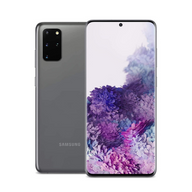









Optimizing Battery Health on Your Refurbished Samsung S22, S22+, or S22 Ultra
Updated on | 8 mins readYou just unboxed your Plug Certified Samsung Galaxy S22. The screen is flawless, the camera is incredible, and the device feels brand new in your hands. But as you start downloading your favorite apps and setting up your home screen, a common thought might cross your mind: Because this phone isn't fresh off the factory line, how long is this battery actually going to last?
If you’ve ever watched your battery percentage free-fall during a busy afternoon, you know the anxiety of being tethered to a charger. But here is the good news: buying a refurbished device doesn't mean compromising on reliable all-day power.
Whether you’re rocking the compact S22, the versatile S22+, or the powerhouse S22 Ultra, optimizing your battery health is easier than you think. Let’s dive into the science of your phone's battery, bust a few common myths, and set up your device for long-lasting success.
The Reality of Refurbished Batteries
To understand battery health, we first need to understand how lithium-ion batteries work. Think of your phone's battery like a pair of high-quality running shoes. Out of the box, they have maximum spring and support. Over hundreds of miles (or charge cycles), the cushioning naturally compresses.
Every smartphone battery degrades over time—it's basic chemistry. However, there is a massive difference between a random "used" phone you buy off a local marketplace and a device that is Plug Certified.
When a Samsung S22 is certified by Plug, it undergoes rigorous testing to ensure the battery meets high-performance standards before it ever reaches your door. You aren't inheriting a worn-out battery; you're getting a thoroughly vetted power source backed by Plug's 12-Month Warranty.
S22 vs. S22+ vs. S22 Ultra: What to Expect
Not all S22 models are created equal when it comes to battery capacity. Here is a quick breakdown of what you can expect from each device in the lineup:
- Samsung Galaxy S22 (3,700 mAh): The most compact of the trio. It’s perfect for moderate users who prioritize a lightweight, pocketable phone. With standard optimization, you can expect solid all-day usage, though heavy gamers might need a late-afternoon top-up.
- Samsung Galaxy S22+ (4,500 mAh): The sweet spot. It offers a significant jump in battery size, making it ideal for power users who stream music, watch videos, and scroll social media extensively.
- Samsung Galaxy S22 Ultra (5,000 mAh): The battery behemoth. Designed for productivity, S-Pen usage, and intense mobile gaming, the Ultra’s massive battery capacity gives you the most runway of the entire series.
Battery Myths Busted: Stop Doing These Things
Before we tweak your settings, we need to unlearn some outdated advice. Smartphone technology has evolved rapidly, but battery myths from a decade ago still linger.
Myth 1: You should let your phone drain to 0% before charging.
The Truth: This was true for old nickel-cadmium batteries, but it actively harms modern lithium-ion batteries. Your S22 prefers to "snack" on power rather than binge. Keeping your battery between 20% and 80% is the golden rule for extending its overall lifespan.
Myth 2: Force-closing apps saves battery.
The Truth: Constantly swiping up to kill apps in the background actually drains more battery. Samsung’s operating system is incredibly smart at freezing background apps. When you force-close an app and reopen it later, your phone requires significantly more processing power to cold-start it from scratch.
Myth 3: Charging overnight will overcharge and ruin the battery.
The Truth: Modern smartphones are just that—smart. Your S22 knows exactly when it reaches 100% and will stop drawing a charge, preventing overcharging. However, sitting at a rigid 100% for hours isn't ideal for long-term health, which is why utilizing Samsung's built-in battery protection features is crucial.
Practical Optimization: Settings to Change Right Now
Ready to get the most out of your Plug Certified device? Grab your S22 and let's make some quick adjustments.
1. Enable "Protect Battery"
Samsung offers a brilliant built-in feature that limits your maximum charge to 85% to prolong the battery's overall lifespan.
- How to do it: Go to Settings > Battery and device care > Battery > More battery settings, and toggle on Protect battery.
2. Put Unused Apps to Deep Sleep
Do you have apps you only use once a month but they're secretly sipping power in the background? Send them to deep sleep.
- How to do it: Navigate to Settings > Battery and device care > Battery > Background usage limits. Here, you can add specific apps to the Deep sleeping apps list, ensuring they never run in the background.
3. Tame Your Display Settings
The beautiful AMOLED screen on your S22 is the biggest power drain on your device. You don't need to sacrifice visual quality, but a few tweaks can work wonders:
- Adaptive Brightness: Let the phone adjust brightness based on your environment.
- Dark Mode: Because OLED screens physically turn off pixels to create the color black, using Dark Mode actively saves battery. (Settings > Display > Dark)
- Motion Smoothness: The 120Hz refresh rate looks buttery smooth, but scaling it back to the standard 60Hz can add hours to your daily battery life if you find yourself in a pinch.
Advanced Diagnostics: Checking Your Battery Health Like a Pro
If you want to keep a close eye on your battery’s condition, you don't need to guess.
The Samsung Members App: This official, pre-installed app is your best diagnostic friend. Open the app, tap on Support, and run a Phone diagnostics test. It will give you a clear reading on your battery status and whether it's functioning normally.
For the Tech Enthusiasts: You may have read on forums like Reddit about dialing secret codes (like *#9900# or *#0228#) to calibrate your battery. While these diagnostic menus exist, they are intended for technicians. Modern Samsung software handles calibration automatically, so it’s best to avoid tinkering with these developer-level codes to prevent accidental software glitches.
Frequently Asked Questions (FAQ)
Why is my S22 battery draining fast right after I bought it?
During the first few days of owning any smartphone, the device is working overtime. It is downloading app updates, syncing cloud data, and learning your unique usage patterns to optimize power distribution. Give it about a week; battery life usually stabilizes and improves dramatically once the setup phase is complete.
Can battery health really be improved after purchase?
You can't physically reverse chemical battery degradation, but you can dramatically improve daily battery life and slow down future degradation. By implementing the optimization tips above, many users see their daily battery life extend by 15% to 30%.
What if my battery really is defective?
While rare due to the strict quality control of a Plug Certified device, electronics can sometimes be unpredictable. That’s why you shouldn't worry. Every device comes with Plug's 12-Month Warranty and a 30-day hassle-free return policy. If your battery isn't performing up to standard, you are completely covered.
Your Next Steps in the Tech Journey
Owning a refurbished smartphone is one of the smartest financial and environmental decisions you can make. By understanding how your battery works and utilizing Samsung’s built-in optimization tools, your S22 will be a reliable companion for years to come.
Remember, you don't need to stress over every single percentage drop. Technology is meant to serve you, not the other way around. Implement these best practices, enjoy that gorgeous screen, and take comfort in knowing your tech is backed by Plug's 12-Month Warranty.
Curious to explore more top-tier technology without the premium price tag? Discover the full ecosystem of rigorously tested, reliably powerful Plug Certified devices today.


